How to Add a Rental Component in Framer
In this tutorial, you will learn how to set up a car rental service in Bookla, add the open-source Rental component to a Framer website, connect it to Bookla, and test the booking flow.
Prerequisites
Before setting up the Rental component in Framer, make sure everything is configured correctly in the Bookla Platform.
Create a Company in Bookla
This step is essential because it links your Company ID to the Framer component.
- Open Bookla Platform and click "Create Account".
- Create an account using your credentials, or log in if you already have one.
- Create a new company or use an invitation code to access an existing one.
Set Up Resources
- Go to your Bookla account.
- Open the "Resources" section.
- Click the "+ New Resource" button.
- Enter a title for the resource. If needed, you can also change the resource color.
- Click the "Create" button.
Creating a Service
- Go to the "Services" section.
- Click "+ New Service".
- Enter a service name, for example, "Volvo XC60 rental".
- Select the service type.
Note
For car rentals, choose "Flexible" because the duration of bookings can vary.
- Select a booking interval.
- Choose a booking policy:
- Instant booking: The client instantly books the service without payment.
- Needs confirmation: The booking requires your confirmation.
- Needs prepayment: The client must prepay to confirm the booking.
- Click "Create".
Connecting a Service to a Resource
- Click "+ Link with Resource".
- Select the resource or resources you want to use for the rental service.
- Click "Link".
Configure the Currency and Tax Rate
- Go to the "Pricing" section.
- Click "Click to set" under Currency.
- Select your preferred currency.
- Click the "Save" button.
- Click "Click to set" under Tax rate.
- Enter your country's or state's required tax rate.
- Choose whether the tax is included in the price.
- Click the "Save" button.
Adding price rule for 1 hour rate
- Click "+ Add price rule".
- Set duration to 1 hour.
- Set the price for a 1-hour rental.
- Set priority.
Note
The higher the number, the higher the priority for the price rule.
- Click "Create".
Adding price rule for 24 hour rate
- Click "+ Add price rule".
- Set duration to 168 hours.
- Set the price for a 24 hour rental.
- Set priority.
- Click "Create".
Adding price rule for 1 week rate
- Click "+ Add price rule".
- Set duration to 168 hours.
- Set the price for a 1-week rental.
- Set priority.
- Click "Create".
Open-Source Rental Component Integration
Bookla provides open-source booking components that you can use on your website. These components can be added to Framer projects as code components and customized to match your website.
You can edit and modify the components, or use them as a starting point for creating variations and adding new features with ChatGPT or another AI tool.
In this tutorial, you will use the Rental component.
The component looks like this:
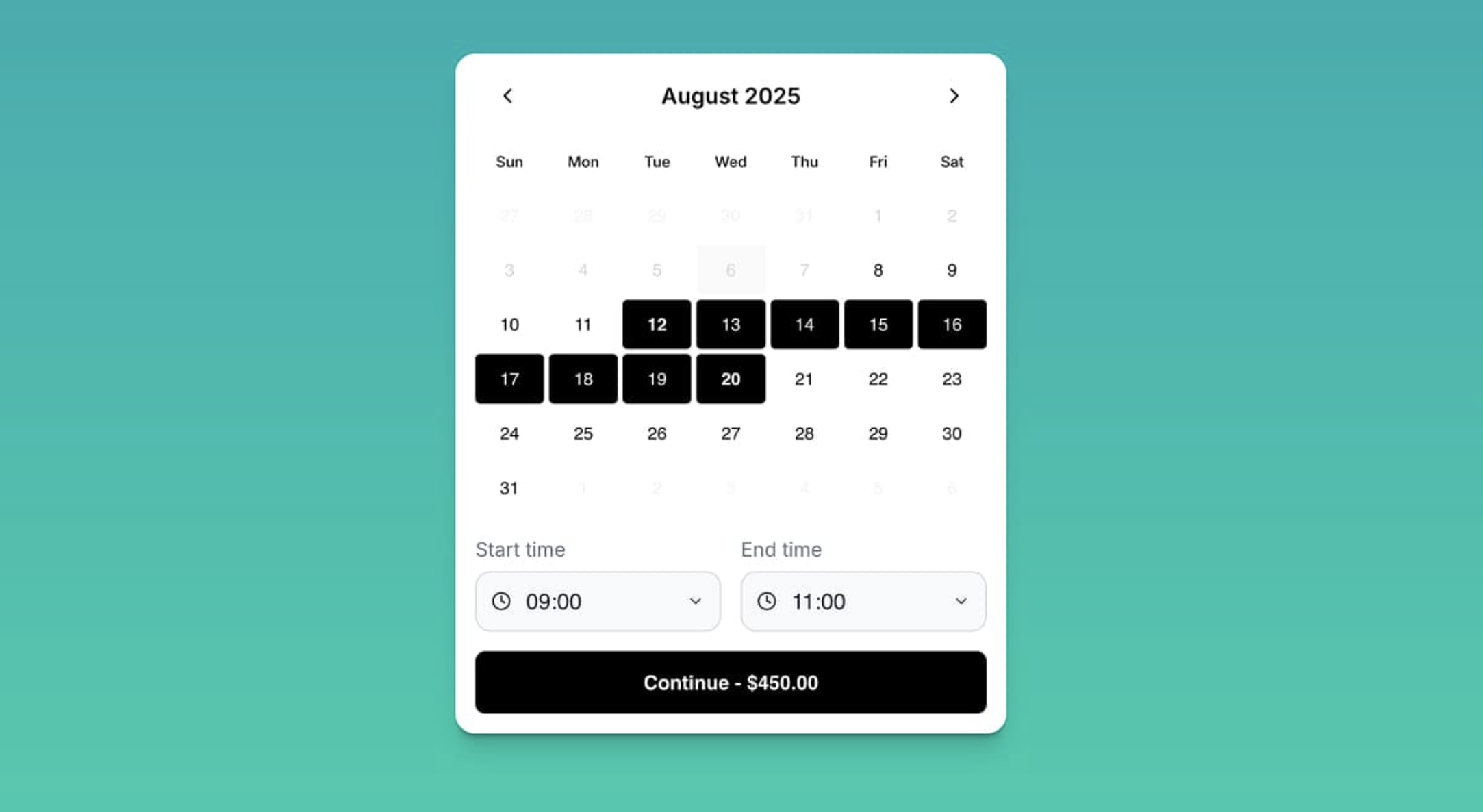
The client can select a date range, start time, and end time. This allows the client to choose both the pickup and drop-off times for the rental.
How to Use the Rental Component
- Go to Open-source Components.
- Find the Rental component.
- Scroll down to "Component.tsx".
- Click on "Component.tsx".
- Copy the code.
- Go to Framer.
- Open the "Assets" section.
- In the code section, click "+".
- Click "New Code File".
- Enter a title, for example, "BookingComponent".
- Click "Create".
Note
By default, Framer creates an animated square as the code component.
- Replace the default code with the copied Rental component code.
- Go back to the page.
- Select the container where you want to place the component.
- Go to the "Assets" section.
- Drag and drop the Rental component onto the page.
- Adjust the component's width and height.
- Customize the component as needed. For example, you can remove padding or change the selected color and button color.
How to Connect the Component to Bookla
After adding the Rental component to your Framer page, connect it to your Bookla account by adding the required API and service information.
- Go to the Bookla section.
- Check the API region in Bookla, US or EU.
- Select the corresponding API region in the API Region field.
- To copy and paste the API key:
- Go to the Bookla Platform.
- Go to the "Developers" section.
- Click "Create API key".
- Enter a name, for example, "Car rental key".
- Select only the following client permissions: Client Service, Client Resource, and Guest Client.
- Copy the API key.
- Paste it into Framer at "API key".
Note
The API key is only available to copy once, so make sure to save it before closing the window.
-
To copy and paste the Company ID:
- Go to the Bookla Platform.
- Click on "Company".
- Copy the ID at the top.
- Paste it into Framer at "Company ID".
-
To copy and paste the Service ID:
- Go to the Bookla Platform.
- Go to the "Services" section.
- Select the rental service.
- Copy the Service ID.
- Paste it into Framer at "Service ID".
Testing the Rental Component
Once the Rental component is connected to Bookla, test the complete booking flow to make sure everything works correctly.
- Go to the page.
- Select a rental period.
Note
The price changes automatically based on the selected period and the price rules configured in Bookla.
- Select a start time and end time.
- Click "Continue".
- Enter the required data.
- Click "Make booking".
- The reservation is created, and you can also see it in the Bookla Platform.
Conclusion
Your Rental component is now connected to Bookla and ready to accept bookings from your Framer website.
You can further customize the component's appearance and settings to match your website and rental service requirements.